Selling products online does not always have to mean setting a fixed price.
For unique, limited, collectible, used, or high-demand products, an auction can give customers another way to buy. Instead of paying a predefined price, customers compete by placing bids, and the winning bid determines the final purchase price according to the auction rules.
If you already use WooCommerce, you can add this functionality with a WooCommerce auction plugin.
In this guide, we will explain how WooCommerce auctions work, the different auction types you can use, how to create an auction in WooCommerce, and which features to look for when choosing an auction plugin.
We will also look at how Auction Engine for WooCommerce can help you manage the complete auction process, from creating an auction product to collecting payment from the winner.
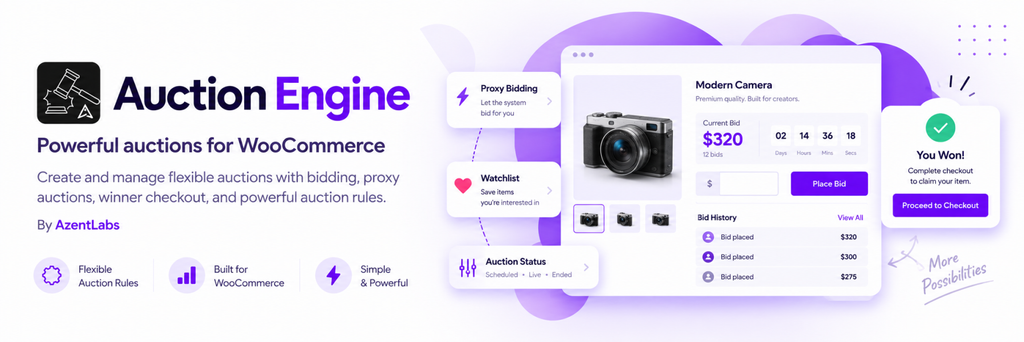
What Is a WooCommerce Auction?
A WooCommerce auction allows customers to compete for a product by placing bids instead of purchasing it at a fixed price.
For example, suppose you are selling a collectible item.
Instead of setting a fixed price of $100, you could create an auction with:
- Starting bid: $50
- Bid increment: $5
- Reserve price: $80
- Auction duration: 7 days
- Buy Now price: $150
Customers can then place bids during the auction. When the auction ends, the winner is determined according to the selected auction rules.
This selling model can be useful when the value of a product may depend on customer demand or when you want to create a more interactive purchasing process.
With an auction plugin, you can add auction products alongside your regular fixed-price WooCommerce products.
Why Use Auctions in a WooCommerce Store?
A fixed price works well for most everyday products, but it is not always the only way to sell.
Auctions can be useful when products are unique, limited, difficult to price, or suitable for competitive bidding.
Sell Unique or Limited Products
Some products do not have an obvious fixed market price.
Examples include:
- Collectibles
- Artwork
- Vintage products
- Rare products
- Limited-edition items
- Used equipment
- Refurbished products
Instead of deciding on a final price yourself, you can allow customers to compete through bidding.
Create a More Interactive Shopping Experience
An auction gives customers more reasons to return to a product page.
They can check the current bid, monitor the countdown, place another bid when necessary, and follow auctions through a watchlist.
This creates a different purchasing experience from a standard product page with a fixed price.
Support Different Selling Models
Not every business needs the same type of auction.
A standard auction may work when the highest bid should win. A reverse auction may be more appropriate when suppliers compete by offering lower prices.
Other situations may call for sealed bids, proxy bidding, or unique-bid rules.
A flexible auction plugin for WooCommerce allows you to choose the bidding model that matches your sales process.
Keep Auctions Inside WooCommerce
Using an auction extension allows you to add bidding functionality to your existing WooCommerce store instead of managing auctions through a completely separate platform.
With Auction Engine, auction products, winner payments, and WooCommerce orders remain part of the same store workflow.
How Does a WooCommerce Auction Work?
A typical WooCommerce auction follows a simple process:
- The store owner creates an auction product.
- The auction type and bidding rules are configured.
- The auction starts at the scheduled time.
- Customers sign in and place valid bids.
- The auction remains open until the scheduled end time.
- The system determines the eligible winner.
- The winner completes payment through WooCommerce.
- If payment expires, the configured fallback or relisting rules are applied.
Auction Engine supports this complete lifecycle, including scheduled auctions, bidding, winner resolution, payment deadlines, notifications, and relisting for failed auctions.
What Types of Auctions Can You Run in WooCommerce?
One of the important things to consider when choosing a WooCommerce auction plugin is the number and type of bidding models it supports.
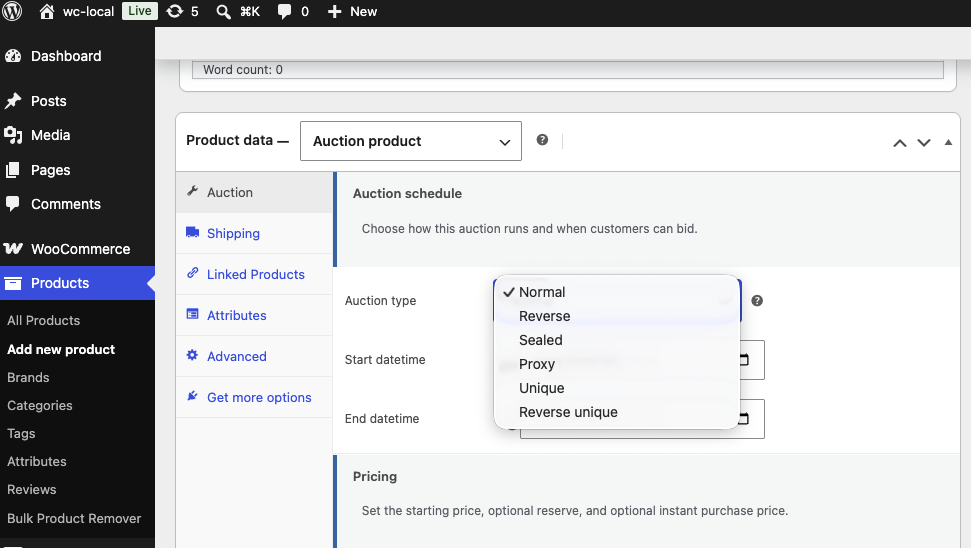
Auction Engine provides six auction modes: Normal, Reverse, Sealed, Proxy, Unique, and Reverse Unique.
1. Normal Auction
A normal auction is the traditional auction format.
The highest valid bid wins when the auction closes.
For example:
| Bidder | Bid |
|---|---|
| Bidder A | $50 |
| Bidder B | $60 |
| Bidder C | $75 |
| Bidder D | $80 |
If no higher valid bid is placed before the auction ends, the $80 bid wins.
This format is suitable for products where you want customers to compete by increasing their bids.
2. Reverse Auction
A reverse auction works in the opposite direction.
The lowest valid bid wins, and each new bid must improve the current lowest bid.
For example:
- Supplier A: $500
- Supplier B: $450
- Supplier C: $420
- Supplier D: $400
If $400 remains the lowest valid bid when the auction closes, that bid wins.
This type of auction can be useful for procurement and supplier price competition.
3. Sealed Auction
In a sealed auction, customers can submit bids without seeing the bid amounts or bid history while the auction is active.
When the auction closes, the highest valid bid wins.
This format can be useful when you want customers to submit their own offers without being influenced by the current public bid.
4. Proxy Auction
Proxy bidding allows customers to set a maximum amount they are willing to pay.
For example:
- Current bid: $50
- Customer’s maximum bid: $100
If another customer bids $60, the system can automatically increase the first customer’s public bid according to the auction rules, as long as it does not exceed their maximum amount.
The customer does not automatically pay their maximum amount. The winner pays the final public bid. If two maximum bids are equal, the earlier bid remains ahead.
Proxy bidding is useful for customers who want the system to continue bidding for them without manually returning to the auction every time another bid is placed.
5. Unique Auction
A unique auction uses a different rule from a standard auction.
The highest amount submitted exactly once wins.
If two or more customers submit the same amount, that amount is no longer unique.
For example:
- $50 — submitted twice
- $60 — submitted once
- $70 — submitted twice
- $80 — submitted once
The highest unique amount is $80, so it would be the winning amount under the unique auction rules.
6. Reverse Unique Auction
A reverse unique auction uses the same uniqueness concept, but the lowest amount submitted exactly once wins.
This creates a different bidding strategy from both normal and reverse auctions.
What Features Should a WooCommerce Auction Plugin Have?
Choosing an auction plugin is about more than adding a “Place Bid” button.
A complete auction workflow needs to handle bidding rules, auction schedules, customer participation, winner payments, and what happens when a winner does not pay.
Here are the key features to consider.
Starting Bid and Bid Increments
A starting bid defines the opening amount of an auction.
For example:
Starting bid: $50
You can also define how much a new bid must increase or improve.
For a normal auction with a $5 increment, valid bids could be:
$50 → $55 → $60 → $65
Auction Engine supports starting bids and configurable bid increments.
Reserve Price
A reserve price lets you define the minimum acceptable result for an auction.
For example:
- Starting bid: $50
- Reserve price: $100
- Highest bid: $85
The auction has not reached the reserve.
The reserve price is not displayed to customers. For standard high-bid auctions, the winning amount must meet or exceed the reserve; for reverse auctions, the winning amount must be at or below the reserve.
This can be useful when you want to attract bidders with a lower starting price while maintaining a minimum acceptable result.
Buy Now
Sometimes a customer does not want to wait until an auction ends.
A Buy Now price gives customers an alternative way to purchase an active auction product immediately.
For example:
Current bid: $80
Buy Now: $150
A logged-in customer can choose Buy Now, which ends further bidding and creates a WooCommerce order for payment.
This lets store owners combine competitive bidding with immediate purchasing.
Auction Start and End Times
An auction should have clear start and end times.
For example:
Start: October 1, 10:00 AM
End: October 8, 10:00 PM
Auction Engine allows store owners to schedule when bidding becomes available and when the auction is scheduled to close. The dates and times use the site’s configured timezone.
Late-Bid Extensions
Last-second bidding can be challenging in online auctions.
A customer may place a bid just before the scheduled closing time, leaving other bidders almost no time to respond.
Auction Engine supports anti-sniping extensions for bids placed near the auction end.
This can give other participants additional time to respond when bidding activity happens near the deadline.
Watchlists and Auction History
Customers may want to follow several auctions without bidding immediately.
Auction Engine allows customers to add auctions to a watchlist and review auction activity through My Account > Auctions.
Customers can also review won, lost, and unpaid auctions from their account.
Auction Notifications
Notifications are important because customers may not continuously monitor an auction.
Auction Engine provides WooCommerce email notifications for auction events, including auction results and payment reminders.
Payment Deadlines
An auction should define what happens after a customer wins.
Auction Engine supports payment deadlines. If the winner does not pay before the deadline, the configured fallback process can be applied.
Automatic Relisting
Sometimes an auction does not result in a completed sale.
For example, the reserve may not be reached or the winner may fail to complete payment.
Auction Engine supports relisting for failed auctions, allowing eligible auctions to be prepared for another run.
How to Create an Auction in WooCommerce
Once an auction plugin is installed, creating an auction should be straightforward.
With Auction Engine, you can create a dedicated Auction product type directly in WooCommerce.
Step 1: Create an Auction Product
Create a new WooCommerce product and select the Auction product type.
You can then configure the auction directly from the WooCommerce product editor.
Step 2: Choose the Auction Type
Select the bidding model that matches your selling process.
You can choose from:
- Normal
- Reverse
- Sealed
- Proxy
- Unique
- Reverse Unique
The appropriate model depends on how you want the winner to be determined.
Step 3: Set the Auction Rules
Configure the important auction settings, such as:
- Starting bid
- Reserve price
- Bid increment
- Start date and time
- End date and time
- Buy Now price
- Payment deadline
- Customer access rules
- Registration or bid fees, if required
Auction Engine also supports optional estimates and item condition information.
Step 4: Publish the Auction
After configuring the product, publish the auction.
Customers can then open the auction product page and see the relevant auction information, including its status, current bid, countdown, and bid history.
The frontend uses AJAX polling to refresh auction information without requiring a full page reload.
Step 5: Manage Customer Bids
Customers must sign in to participate in an auction.
Depending on the configuration, they may also need to complete registration or pay a registration or bid fee before placing a bid.
The server validates the auction status, customer permissions, fees, bid amount, increment rules, reserve rules, and other applicable conditions before accepting a bid.
Step 6: Collect Payment from the Winner
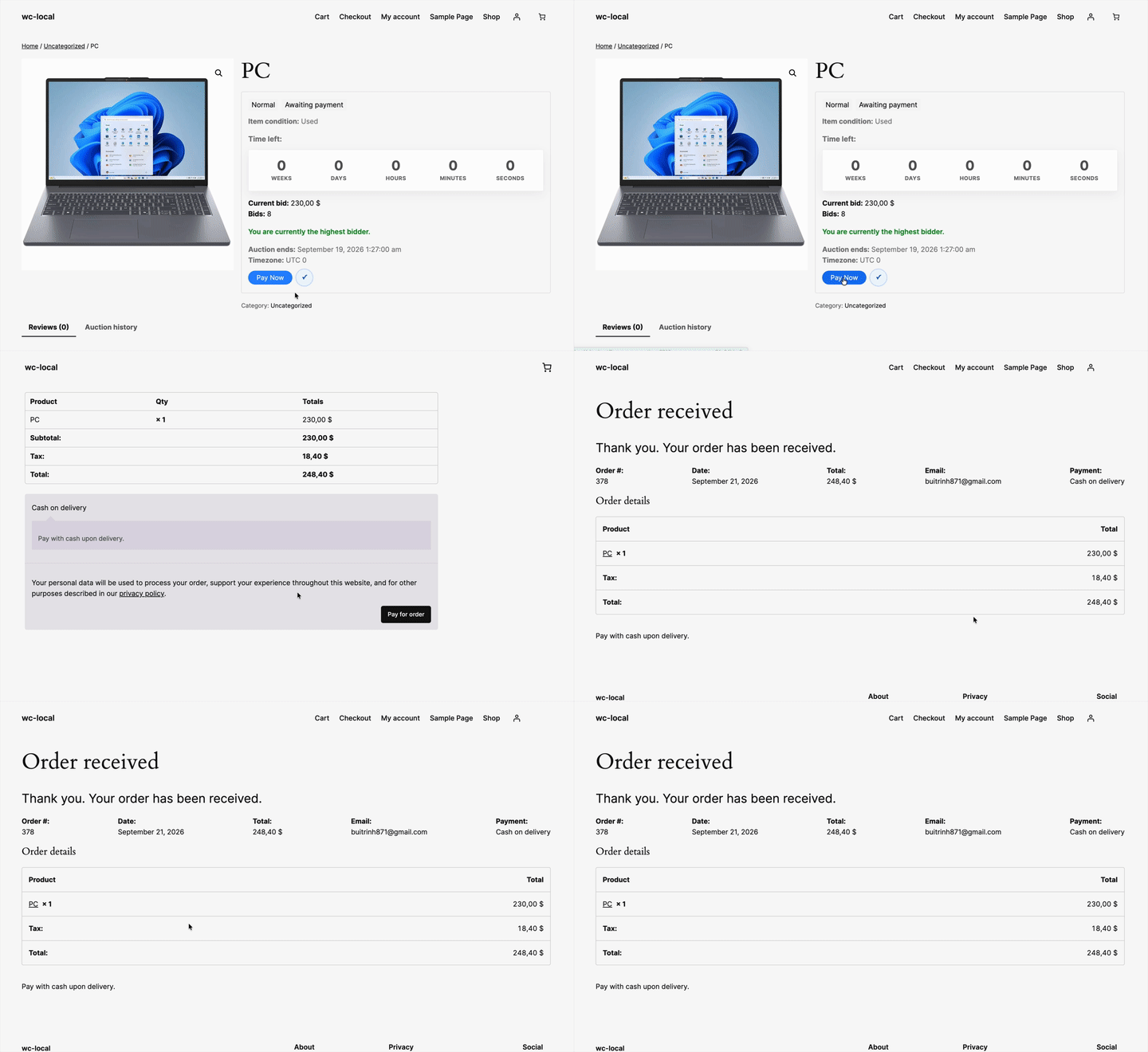
When the auction ends with an eligible winner, the auction moves into the payment process.
The winner can select Pay Now and continue through the standard WooCommerce payment page.
Customers can also use Pay All Won Auctions to pay for multiple unpaid won auctions in one order.
What Happens When a WooCommerce Auction Ends?
Ending the auction is only one part of the process.
A complete auction workflow also needs to determine the winner and handle payment.
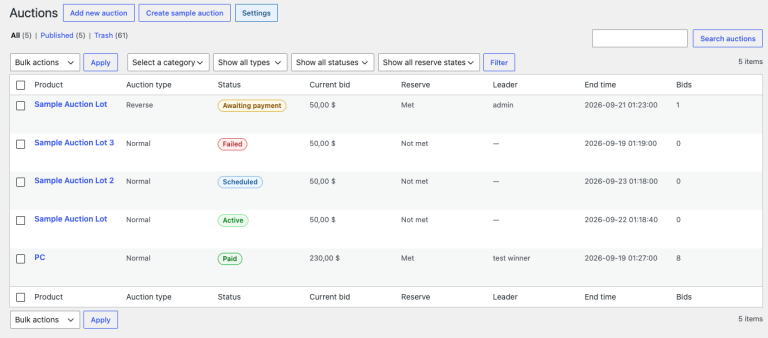
Auction Engine uses auction statuses to manage the lifecycle, including:
- Scheduled — the auction has not started yet.
- Active — customers can place bids.
- Ended — the scheduled end time has passed and the result is being finalized.
- Awaiting Payment — a winner has been resolved and payment is due.
- Paid — the winner’s WooCommerce order has reached a paid-compatible status.
- Failed — there is no eligible winner, the reserve was not met, or payment expired.
- Relisted — the auction is being prepared for another run.
This lifecycle helps store owners manage auctions without manually tracking every stage.
What Happens If the Winner Does Not Pay?
Non-payment is an important part of running an online auction.
Suppose an auction ends and the highest eligible bidder wins, but the customer does not complete payment before the deadline.
Depending on the configured Second-highest fallback setting, Auction Engine can either:
- Promote the next eligible bidder, or
- Mark the auction as failed.
A failed auction can then be relisted when automatic relisting is enabled.
Having a defined process for unpaid auctions is important because otherwise store owners may need to manually contact bidders and restart the sales process.
Who Can Use WooCommerce Auctions?
Auctions can be used in many different ecommerce scenarios.
Collectibles
Collectors may compete for rare or hard-to-find products.
An auction can be used when demand is difficult to estimate with a fixed price.
Artwork
Artists, galleries, and online stores can use auctions for selected artwork or limited pieces.
Vintage and Rare Products
Vintage products may have different perceived values depending on the customer and market.
An auction can provide an alternative to choosing one fixed price.
Limited-Edition Products
Limited products can be offered through scheduled auctions to create a defined bidding period.
Used and Refurbished Products
Businesses selling used or refurbished equipment may use auctions when products vary in condition, demand, or market value.
Procurement and Supplier Competition
Reverse auctions can be used when suppliers compete by offering lower prices.
The auction format can therefore be useful beyond traditional consumer ecommerce.
WooCommerce Auctions vs. Fixed-Price Products
Auctions and fixed-price selling solve different ecommerce needs.
| Fixed-Price Selling | Auction Selling |
|---|---|
| The store sets the product price | Customers compete according to auction rules |
| Customers can purchase immediately | Customers normally bid before purchasing |
| No auction deadline | The auction has a start and end time |
| Suitable for regular products | Useful for selected products and competitive selling |
| Simple purchasing process | Requires bidding and auction management |
| Final price is known in advance | Final price depends on the auction rules |
You do not necessarily have to choose only one model.
A WooCommerce store can continue selling regular products at fixed prices while using auctions for selected products.
Why Use Auction Engine for WooCommerce?
Auction Engine for WooCommerce adds auction functionality directly to WooCommerce and supports six different auction modes from the same store.
Key capabilities include:
- Six auction modes
- Normal auctions
- Reverse auctions
- Sealed auctions
- Proxy bidding
- Unique auctions
- Reverse unique auctions
- Starting bids
- Reserve prices
- Configurable bid increments
- Buy Now
- Auction scheduling
- Late-bid extensions
- Watchlists
- Bid history
- Outbid and auction notifications
- Registration and bid fees
- Buyer’s premium
- Customer role restrictions
- Payment deadlines
- Winner checkout
- Pay All Won Auctions
- Automatic relisting
- Auction lifecycle emails
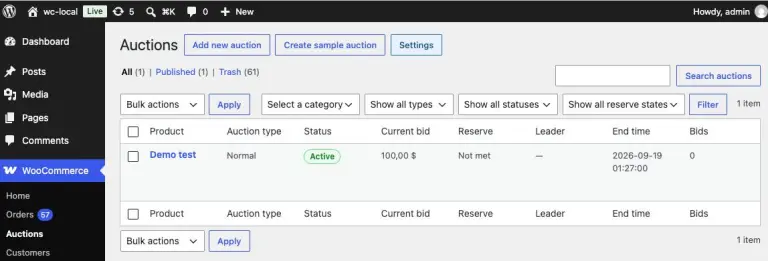
- Auction management dashboard
- Bid and fee log exports
- Cron health monitoring
The plugin adds a dedicated Auction product type to WooCommerce, while winner payments and Buy Now purchases use WooCommerce orders and checkout.
This allows store owners to manage auction products alongside their existing WooCommerce products instead of creating a completely separate auction platform.
What Should You Check Before Choosing a WooCommerce Auction Plugin?
Before installing an auction plugin, consider the complete workflow rather than focusing only on bidding.
Does it support the auction types you need?
A basic store may only need a normal auction.
More specialized businesses may need reverse, sealed, proxy, or unique auctions.
Can you control the starting price and bidding rules?
Check whether the plugin supports starting bids, bid increments, reserve prices, and other pricing rules.
Does it support Buy Now?
A Buy Now option can give customers an immediate purchasing path when they do not want to wait for the auction to finish.
How are winners handled?
The plugin should provide a clear process for determining the winner and collecting payment.
What happens if the winner does not pay?
Look for payment deadlines, fallback bidders, failed-auction handling, and relisting options.
Can customers track their auctions?
Watchlists, auction history, countdowns, bid history, and notifications can make the experience easier for customers.
Can administrators manage multiple auctions?
A central auction dashboard, filters, bulk actions, exports, and automated lifecycle tasks become increasingly useful as the number of auctions grows.
Frequently Asked Questions
Can I add auctions to an existing WooCommerce store?
Yes. Auction Engine adds a dedicated Auction product type to WooCommerce, allowing you to create auction products alongside regular WooCommerce products.
How do I create an auction in WooCommerce?
Install a WooCommerce auction extension, create an Auction product, select an auction mode, configure the starting bid and other rules, set the auction schedule, and publish the product.
Can I set a reserve price for a WooCommerce auction?
Yes. Auction Engine supports optional reserve prices. The reserve is not displayed to customers.
Can customers buy an auction product immediately?
Yes. Auction Engine supports a Buy Now price. A logged-in customer can use Buy Now while the auction is active, which ends further bidding and creates a WooCommerce order for payment.
Does Auction Engine support proxy bidding?
Yes. Customers can enter a private maximum amount, and the system can automatically maintain the leading public bid up to that maximum. The winner pays the final public bid rather than the private maximum.
Can I run different types of auctions in the same WooCommerce store?
Yes. Auction Engine supports six auction modes: Normal, Reverse, Sealed, Proxy, Unique, and Reverse Unique.
What happens after an auction ends?
When an auction ends with an eligible winner, Auction Engine resolves the winner and moves the auction into the payment process. The winner can continue to a WooCommerce payment page.
What happens if the winning bidder does not pay?
Depending on the configured fallback setting, Auction Engine can promote the next eligible bidder or mark the auction as failed. Failed auctions can be relisted when automatic relisting is enabled.
Can I run auctions and regular products in the same WooCommerce store?
Yes. Auction products can exist alongside regular WooCommerce products, allowing you to use fixed-price selling for some products and auction-based selling for others.
Start Running Auctions on WooCommerce
WooCommerce gives online stores a flexible foundation for selling products, but a fixed price is not always the only option.
If you sell collectibles, artwork, vintage products, limited-edition items, used equipment, or products that benefit from competitive bidding, an auction can provide another way to sell.
The important part is choosing an auction system that handles the complete process:
Create the auction → Set the bidding rules → Accept bids → Manage the auction → Determine the winner → Collect payment → Handle unpaid auctions → Relist when necessary.
Auction Engine brings these capabilities into WooCommerce, with six auction modes, flexible bidding rules, winner checkout, customer auction tools, notifications, and auction lifecycle management.
Ready to add online auctions to your WooCommerce store?
Explore Auction Engine for WooCommerce and start creating auction products directly from your WooCommerce store.
Tags: auction plugin for WooCommerce, how to create an auction in WooCommerce, WooCommerce auction plugin, WooCommerce bidding plugin