

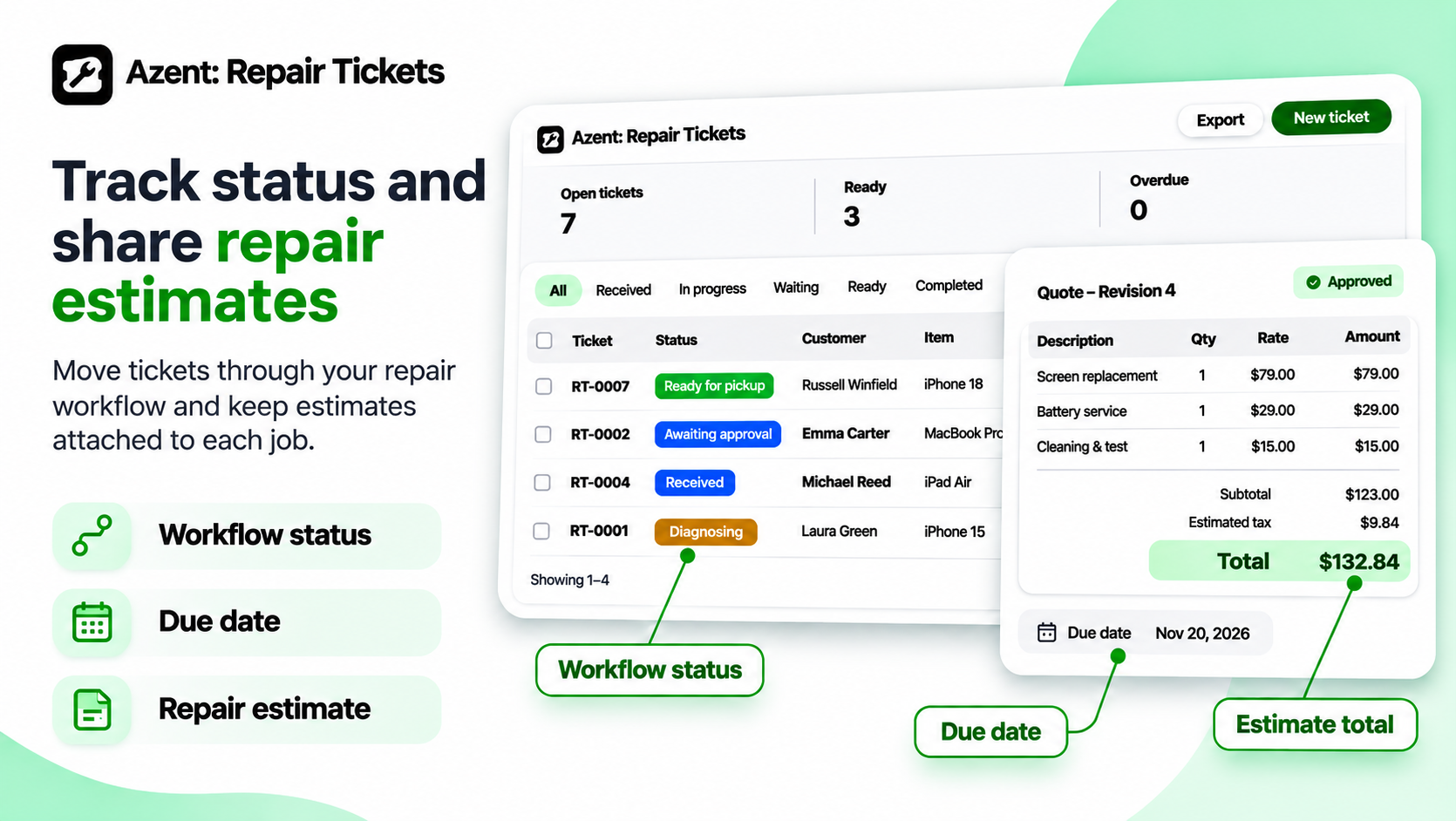
Quick answer. To manage repair tickets in Shopify, create a ticket for each device at drop-off. Record the reported issue and device condition, add your diagnosis, send an estimate for approval, and update the ticket through pickup. With Azent: Repair Tickets for Shopify, you can keep that history in Shopify and share progress through a private customer link.
A customer drops off a phone that sometimes stops charging. One person takes it in at the counter, a technician tests it later, and another team member handles pickup. A repair ticket gives everyone the same record of what arrived, what the technician found, and what the customer approved.
What is a repair ticket?
A repair ticket is the record for a single repair job. It connects the customer and device to the reported issue, diagnosis, estimate, approval decision, and pickup. For phone, computer, and electronics repair shops, it also records the condition of the device and any accessories left at drop-off.
How to manage repair tickets in Shopify with Azent
1. Create a ticket at drop-off
Open Azent: Repair Tickets in Shopify and create a ticket for the device. Add the customer’s contact details, the device model, and the problem in the customer’s own words. Record visible damage and any items left with the device, such as a charger or case. Add photos where they help document its condition. You can also print an intake form for the handoff.
2. Record the diagnosis
Use the ticket notes to capture what you tested and what you found. For example, “Customer reports intermittent charging” is the intake note. “Charging disconnects when the plug moves, even with a known-good cable” is a diagnostic observation. Keeping both helps the next person understand what has been checked and what still needs attention.
3. Send the repair estimate for approval
Write an estimate that explains the proposed work and its cost. Share it through the private status page so the customer can approve or decline it. Their decision is recorded on the ticket. If you discover additional work, explain the change and get approval for the revised estimate before proceeding.
4. Share repair progress with the customer
Update the ticket at meaningful points, such as when diagnosis is complete or the device is ready for pickup. Use the private status link to share progress, the estimate, and any photos you choose to make visible to the customer.
5. Record pickup and close the job
Before handing back the device, check the intake record for accessories and review the approved work. Update the ticket after pickup so staff can see which jobs are complete and which devices are still waiting to be collected.
Watch the Azent: Repair Tickets demo
See how the app brings the repair ticket, customer status page, and estimate approval into one workflow.
Watch the Azent: Repair Tickets demo on YouTube
Example repair ticket for a phone repair shop
Here’s what a completed ticket might look like for the phone with intermittent charging.
- Device and issue. Smartphone with intermittent USB-C charging.
- Condition and included items. Scuff on the lower frame. Customer left one USB-C cable.
- Diagnosis. Charging disconnects when the plug moves. The issue also occurs with a known-good cable.
- Estimate and approval. Customer approved the charging-port replacement estimate through the status page.
- Completion. Charging passed the final check. The device and cable were returned at pickup.
Frequently asked questions
Can customers check their repair status online?
Yes. With Azent: Repair Tickets, customers can use a private status link to see repair progress, estimates, and any photos the shop chooses to share.
Can customers approve or decline a repair quote online?
Yes. Customers can respond to the estimate through the private status page. The shop can see their decision on the repair ticket.
What should a repair intake form include?
Include the customer’s contact details, device model, reported issue, visible condition, and a list of accessories left with the device. Add photos where they clarify existing damage or condition at drop-off.
Start tracking repair jobs in Shopify
Run one test job from drop-off to pickup. Create a ticket, share its private status link, and check what the customer sees when reviewing the estimate. Then use the same workflow for your next repair.